
This guide provides step-by-step instructions on how to find your Awin credentials and add them to FMTC. By following these steps, your merchant relationship statuses will automatically sync (once every 24 hours) with FMTC.
These instructions explain how to:
Add your network ID.
Add your MerchantSync credentials*
*You must add your network ID before you can set up MerchantSync.
Last update: 2/23/2024
To add your Awin network ID to your FMTC account, start here.
-
Login to the Awin publisher dashboard - https://ui.awin.com/login

-
Copy the number in parentheses in the upper right corner
.jpg?cb=0364e6ef8fc2595ea9ba3194502b1cd0)
-
Go to your FMTC dashboard - https://account.fmtc.co/cp/dash
-
Click "Relationships" then “Manage Network IDs”
.jpg?cb=3ac6220a2ec534b1767cbfe4ae92752f)
-
Under US Affiliate Networks, click in the "Awin (AW)" box, add your network ID, then click "Save"
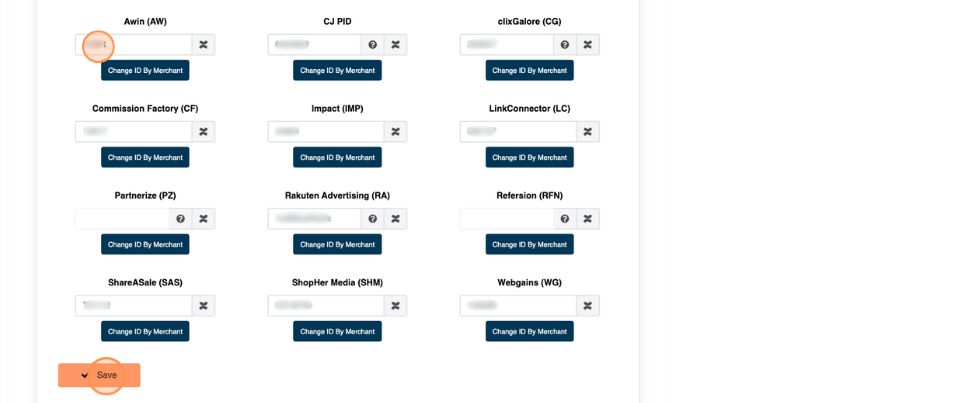
Nice job: you added your Awin network ID to FMTC!
To set up MerchantSync for Awin, first add your network ID, then proceed from here.
-
Go to your Awin publisher dashboard - https://ui.awin.com/login
-
Click on the person icon in the upper right, then click “API Credentials”
.jpg?cb=bdbd017cc584b890096c35aabd246357)
-
Click in the Password box, enter your password, then click “Show my API token”
.jpg?cb=39193e13daa0b0121b1a61bdd6224e84)
-
Click “Copy token”
.jpg?cb=cee66fd85ba0bef1bd46e0ad76715bf4)
-
Go to your FMTC dashboard - https://account.fmtc.co/acct-dashboard
-
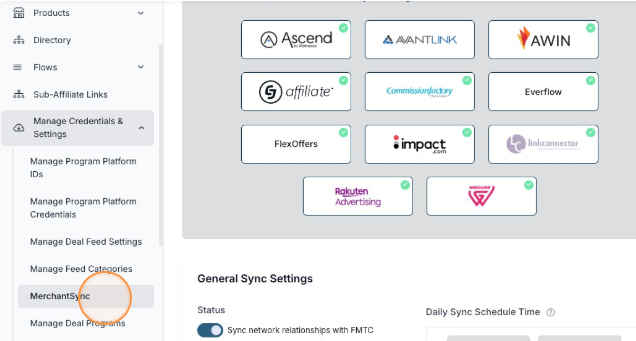
Click "Manage Credentials & Settings" then "MerchantSync"
-
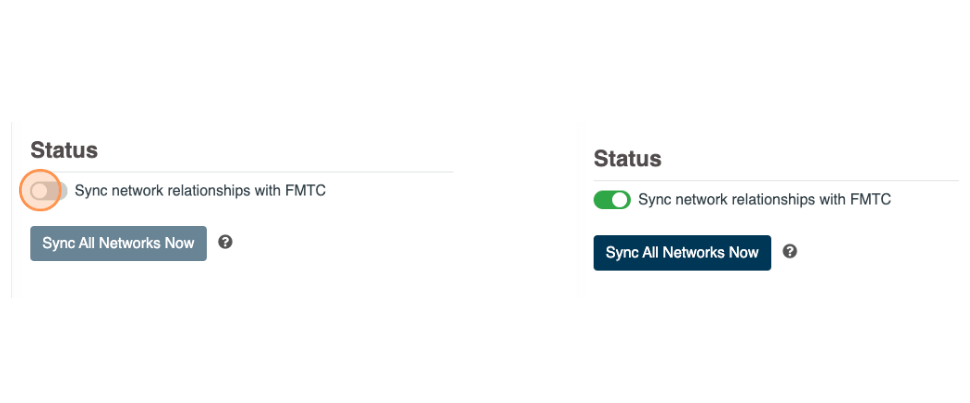
Scroll down to Status. Toggle “Sync network relationships with FMTC” on (On = Green). *This setting applies to all networks; you only have to toggle this on once.
-
Click the AWIN logo
.jpg?cb=c151e356d2ccd610e18d273471db4a19)
-
Click “Edit” then paste your OAuth2 Token into the OAuth2 Token box
.jpg?cb=aed3ce9bea8a20a3c7017426e8eb4c19)
-
Click “Save”
.jpg?cb=3c4061fcbb4c6ed6b70b98996c264cfc)
-
Click “Sync” - if setup correctly, a green confirmation box and the quantity of merchants synced is shown
.jpg?cb=fd67f9e1a7a704cf1c93e8e8a87a6ab6)
Well done, you added your MerchantSync credentials!
Now that MerchantSync is set up, your merchant relationship statuses will automatically sync (once every 24 hours) with FMTC.